 Widget Vault
How to Add Widgets to Your Mac Desktop
Since macOS 14 Sonoma, widgets don't just live in Notification Center — you can pin them straight onto your desktop, where they stay visible and update live. Here's exactly how to add, move, resize and remove Mac desktop widgets, plus how to get widgets from third-party apps and even your iPhone.
Add a widget to the desktop (macOS 14 or later)
- Control-click (right-click) an empty spot on your desktop wallpaper and choose Edit Widgets.
- The widget gallery opens along the bottom of the screen. Browse by app in the sidebar or search for the widget you want.
- Drag the widget anywhere on the desktop — or click the green + that appears when you hover over it.
- Right-click the widget to switch between Small, Medium and Large sizes.
- Click Done in the bottom-right corner. Widgets stay put, even when you rearrange windows.
Add a widget to Notification Center
Prefer widgets tucked away until you need them? Click the date and time in the menu bar (top-right corner) to open Notification Center, scroll down and click Edit Widgets. This method also works on older versions of macOS, back before desktop widgets existed.
Get more widgets: third-party apps
The gallery only shows widgets from apps installed on your Mac — and a new app's widgets appear after you've launched the app at least once. So to add richer widgets than the built-in ones:
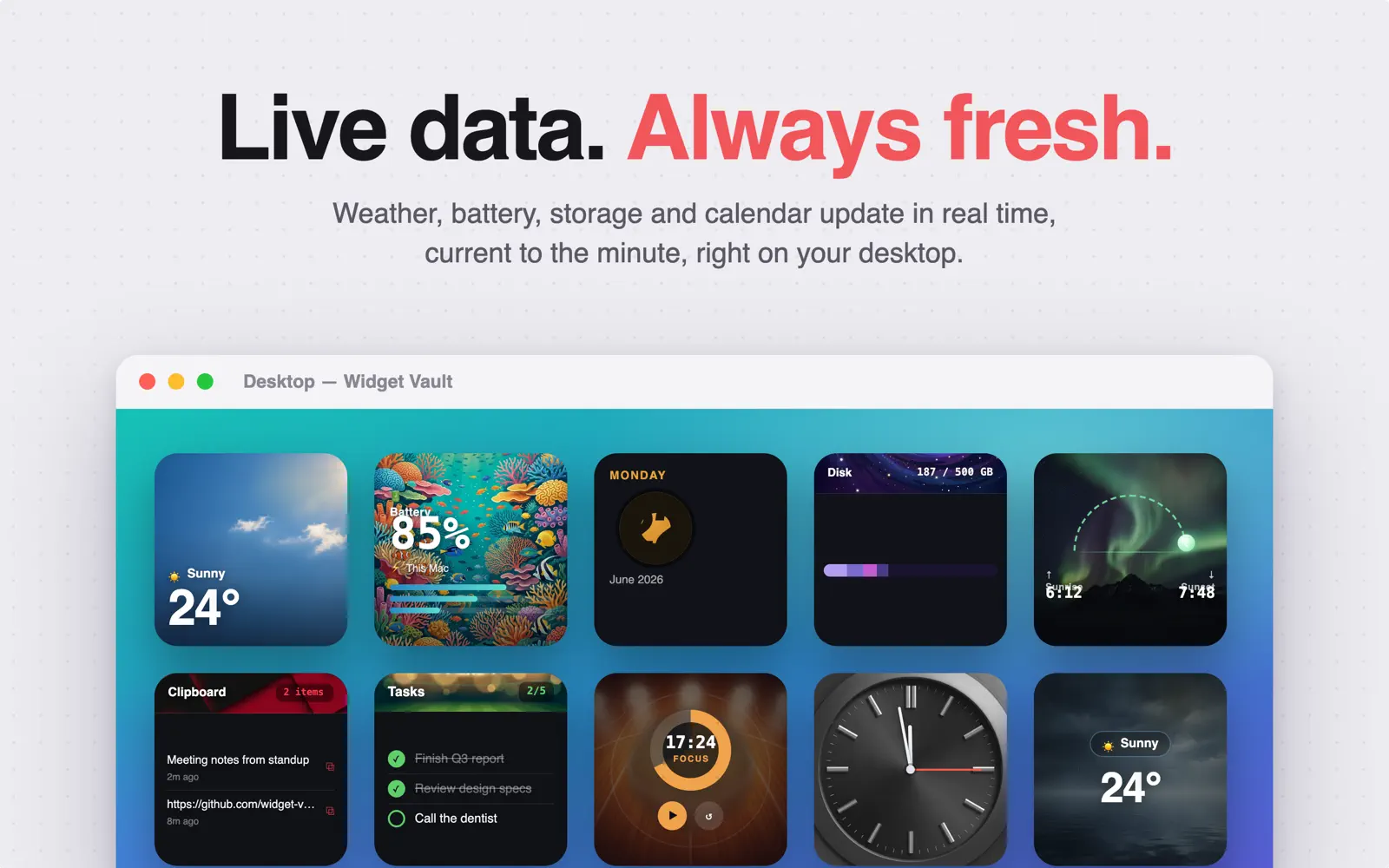
- Download Widget Vault free from the Mac App Store — it adds 10 widgets: analog and digital clocks, weather, calendar, to-do list, Pomodoro timer, battery, disk space, sunrise & sunset, and clipboard history.
- Open Widget Vault once and pick a design style for the widgets you care about — there are 55+ themed styles with live previews.
- Control-click the desktop → Edit Widgets, and find Widget Vault in the app list.
- Drag your styled widgets anywhere. Interactive ones — Pomodoro, to-do list, clipboard — respond to clicks right on the desktop, without opening the app.
Use iPhone widgets on your Mac
macOS can also mirror widgets from your iPhone if both devices use the same Apple ID and are near each other (or on the same Wi-Fi network). iPhone widgets appear under a "From iPhone" label in the widget gallery. Handy — but they can't be interactive the way native Mac widgets are, so for anything you want to click (timers, tasks, clipboard), use a native Mac widget app instead.
Remove or rearrange widgets
- Move: just drag a widget to a new spot at any time.
- Remove: right-click the widget and choose Remove Widget.
- Faded or grey widgets? That's a macOS setting, not a bug — see Mac widgets not showing or greyed out? 8 fixes.
Ready to fill that widget gallery?
Widget Vault adds 10 live, interactive, beautifully themed widgets to your Mac — clocks and a Pomodoro timer are free forever.

Free download · macOS 14 Sonoma or later