File Converter
One App, Any Format.
Voice Memos, QuickTime exports and Music rips all come out as M4A. Convert them to MP3 — the format every app, car stereo and website accepts — in one drag.
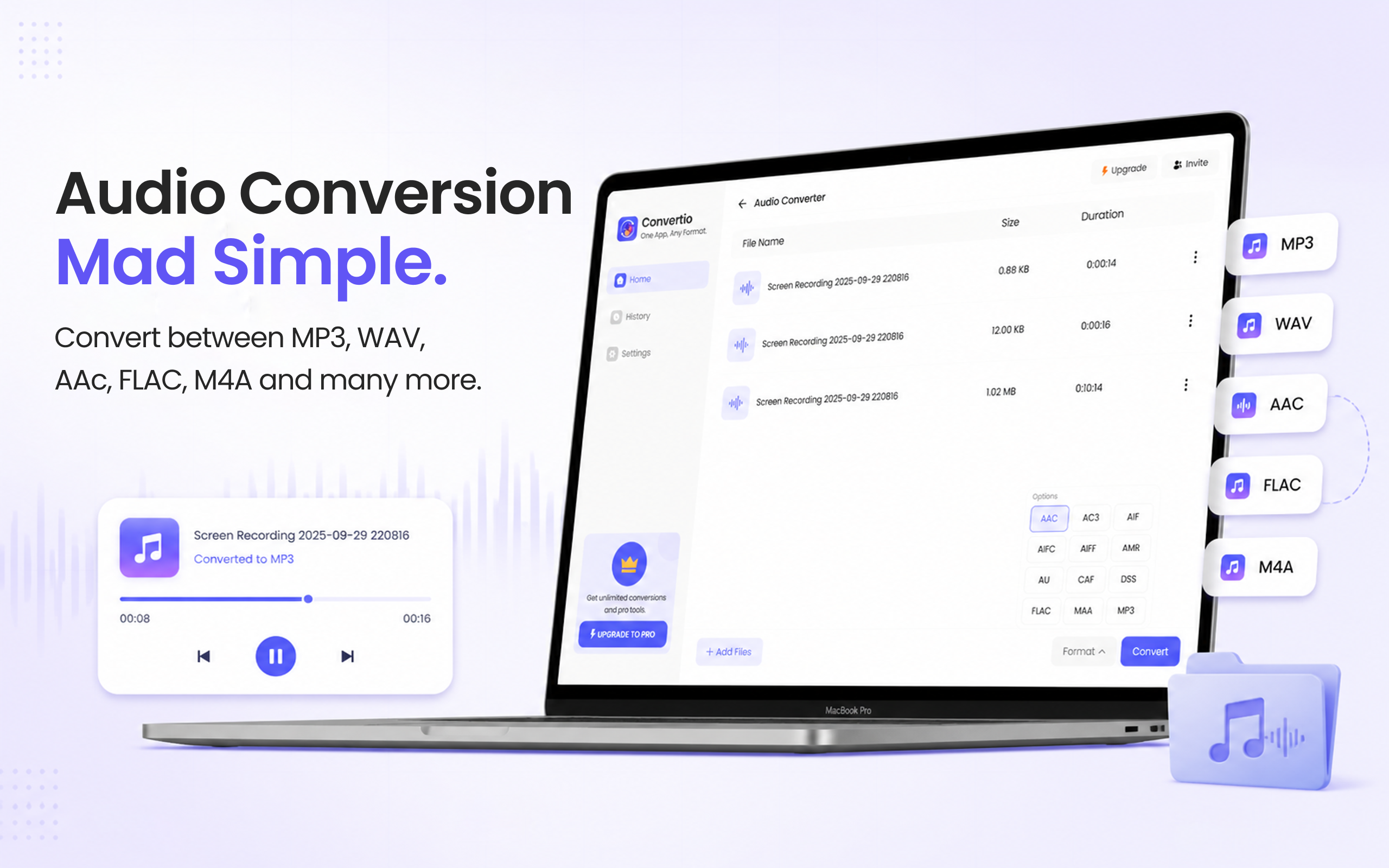
5 simple steps, done in under 30 seconds.
Get File Converter from the Mac App Store. Free to start, no account needed. Requires macOS 14 or later.
Launch the app and click Audio Converter in the left sidebar.
Drag recordings straight in — from Voice Memos, drag the memo to your desktop first, then drop it here.
Click the format dropdown and choose MP3 from the list.
Hit Convert. Play-anywhere MP3s, saved straight to your Mac.
M4A is Apple's default audio format — Voice Memos, QuickTime audio exports, and Music-app files all use it. It's efficient, but the moment a recording leaves the Apple bubble the trouble starts: podcast hosts, transcription services, older players, websites and Android phones often want MP3. Apple's own conversion route runs through the Music app's import settings — several clicks deep and easy to forget. File Converter is one drag: M4A in, MP3 out, batches welcome.
Files are deleted from servers immediately after conversion. No account required.
One app for video, audio, image, and document conversions.
Convert a whole folder of interview recordings in one run.
Open Voice Memos on your Mac and drag the recording from the list onto your desktop (or right-click → Save to Finder on newer macOS). That gives you the M4A file — drop it into File Converter and pick MP3.
MP3 has been the universal audio format for 25+ years — every device, browser, CMS and audio tool supports it. M4A support outside Apple platforms is still patchy.
For voice recordings the difference is inaudible. File Converter converts at quality settings that preserve how the original sounds.
Download File Converter and turn your first M4A into an MP3 in under 30 seconds. Free to start.
Download Free for Mac