File Converter
One App, Any Format.
Mac screenshots are PNG — crisp, but huge. Convert them to JPG and they shrink dramatically, small enough for any email, form, or upload limit.
5 simple steps, done in under 30 seconds.
Get File Converter from the Mac App Store. Free to start, no account needed. Requires macOS 14 or later.
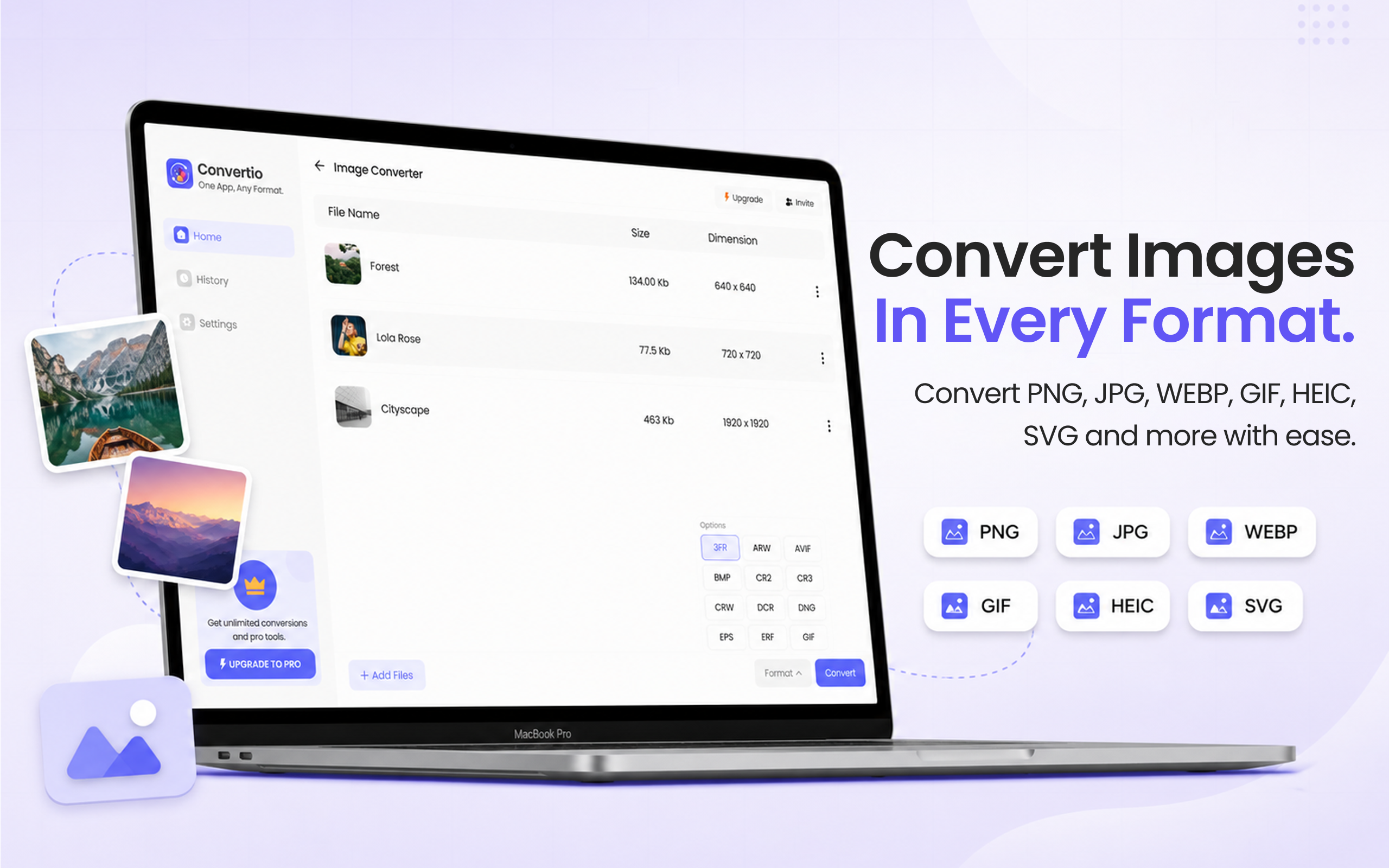
Launch the app and click Image Converter in the left sidebar.
Drag and drop your PNGs — screenshots, exports, scans, or a whole folder.
Click the format dropdown and choose JPG from the list.
Hit Convert. Dramatically smaller JPGs, saved straight to your Mac.
PNG is lossless, which is why macOS uses it for screenshots — and why the files are so large. A full-screen Retina screenshot can be several megabytes; a JPG of the same image is a fraction of that with no visible difference. That matters when a form caps uploads, an email bounces attachments, or a site loads your portfolio images slowly. File Converter batch-converts stacks of PNGs to JPG in one drag.
Files are deleted from servers immediately after conversion. No account required.
One app for video, audio, image, and document conversions.
Select every screenshot on your desktop and convert them in one run.
Typically 5–10× smaller for screenshots and photos. A 4 MB PNG screenshot usually lands well under 1 MB as a JPG with no visible quality loss.
Keep PNG when you need transparency or pixel-perfect graphics — logos, UI assets, images with text you'll zoom into. For sharing photos and screenshots, JPG is the practical choice.
Yes. Drag in any number — or a whole folder — and File Converter converts them all in a single run, with a ZIP download for the batch.
Download File Converter and make your PNGs email-sized in under 30 seconds. Free to start.
Download Free for Mac