File Converter
One App, Any Format.
iPhone and iPad save photos as HEIC by default. Convert them to JPG, compatible with every app, website, and device, in seconds, entirely with no account required.
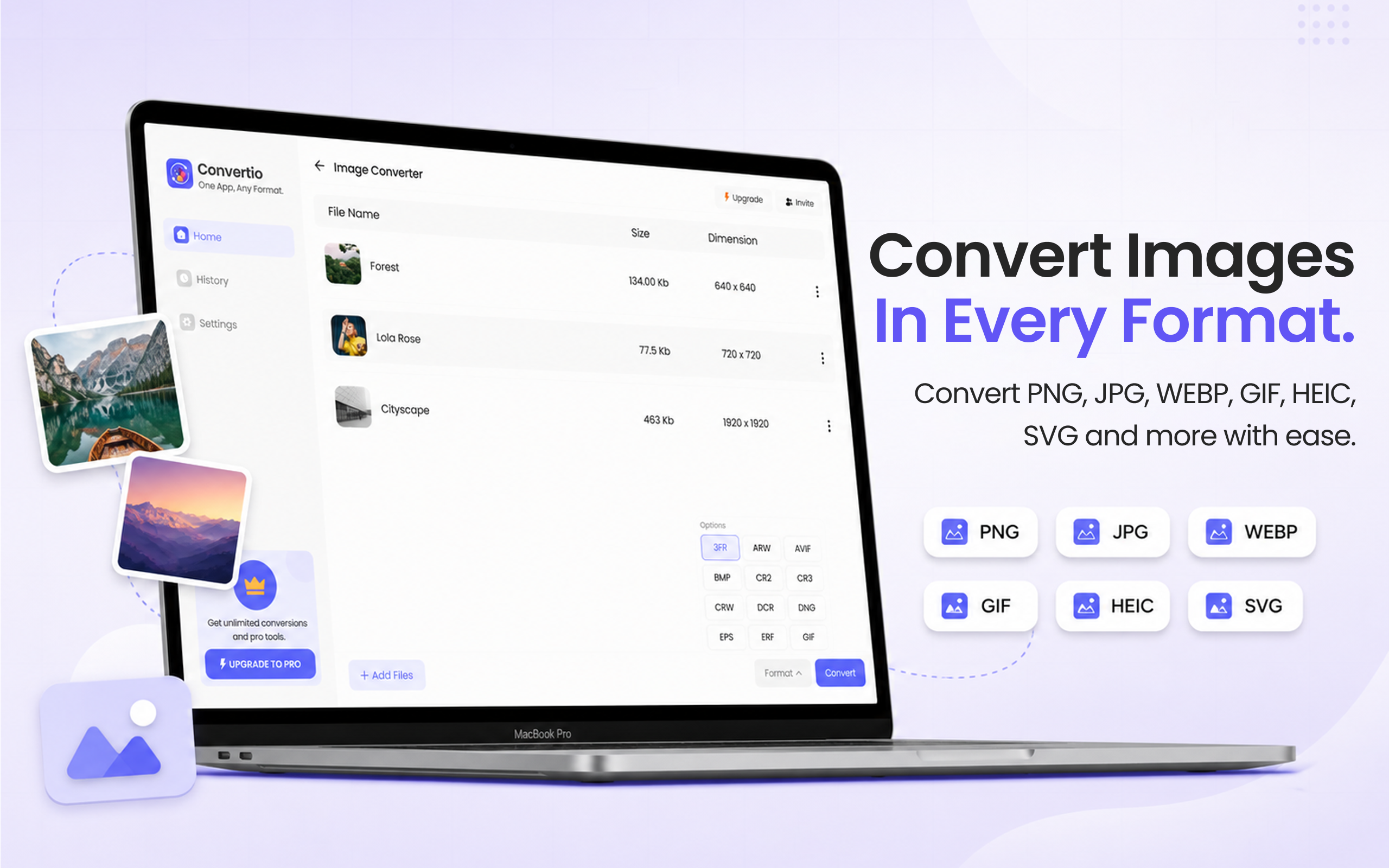
5 simple steps, done in under 30 seconds.
Get File Converter from the Mac App Store. Free to start, no account needed. Requires macOS 14 or later.
Launch the app and click Image Converter in the left sidebar.
Drag and drop your HEIC files into the converter. Add a single photo or an entire folder at once.
Click the format dropdown and choose JPG from the list.
Hit Convert. Your JPG files are saved to your Mac in seconds, no upload, no waiting.
HEIC (High Efficiency Image Codec) is Apple's modern photo format, it stores images at roughly half the size of JPG with the same visual quality. But HEIC isn't supported everywhere. Windows PCs, many websites, social media platforms, and older apps don't handle HEIC natively. Converting to JPG ensures your photos open and display correctly on any device or platform. File Converter does this, your photos never leave your Mac.
Files are deleted from servers immediately after conversion. No account required.
One app for video, audio, image, and document conversions.
Convert hundreds of HEIC photos at once, drag a whole folder.
Apple switched to HEIC as the default photo format on iPhone and iPad because it stores images at roughly half the file size of JPG with the same visual quality. However, HEIC isn't supported by all apps and platforms, which is why converting to JPG is often necessary.
Yes. File Converter is free to start with no account required. The free tier supports files up to 100 MB. A Pro subscription (monthly or yearly, billed through your Apple ID) unlocks unlimited file sizes and conversions.
Yes. Drag any number of HEIC photos into File Converter, or drop an entire folder, and it converts them all to JPG simultaneously.
Download File Converter and convert your first HEIC photo in under 30 seconds. Free to start.
Download Free for Mac