
File Converter
One App, Any Format.
Every image you save from the web seems to be WebP now — and half your apps can't open it. Convert one file or a whole folder to JPG in seconds.
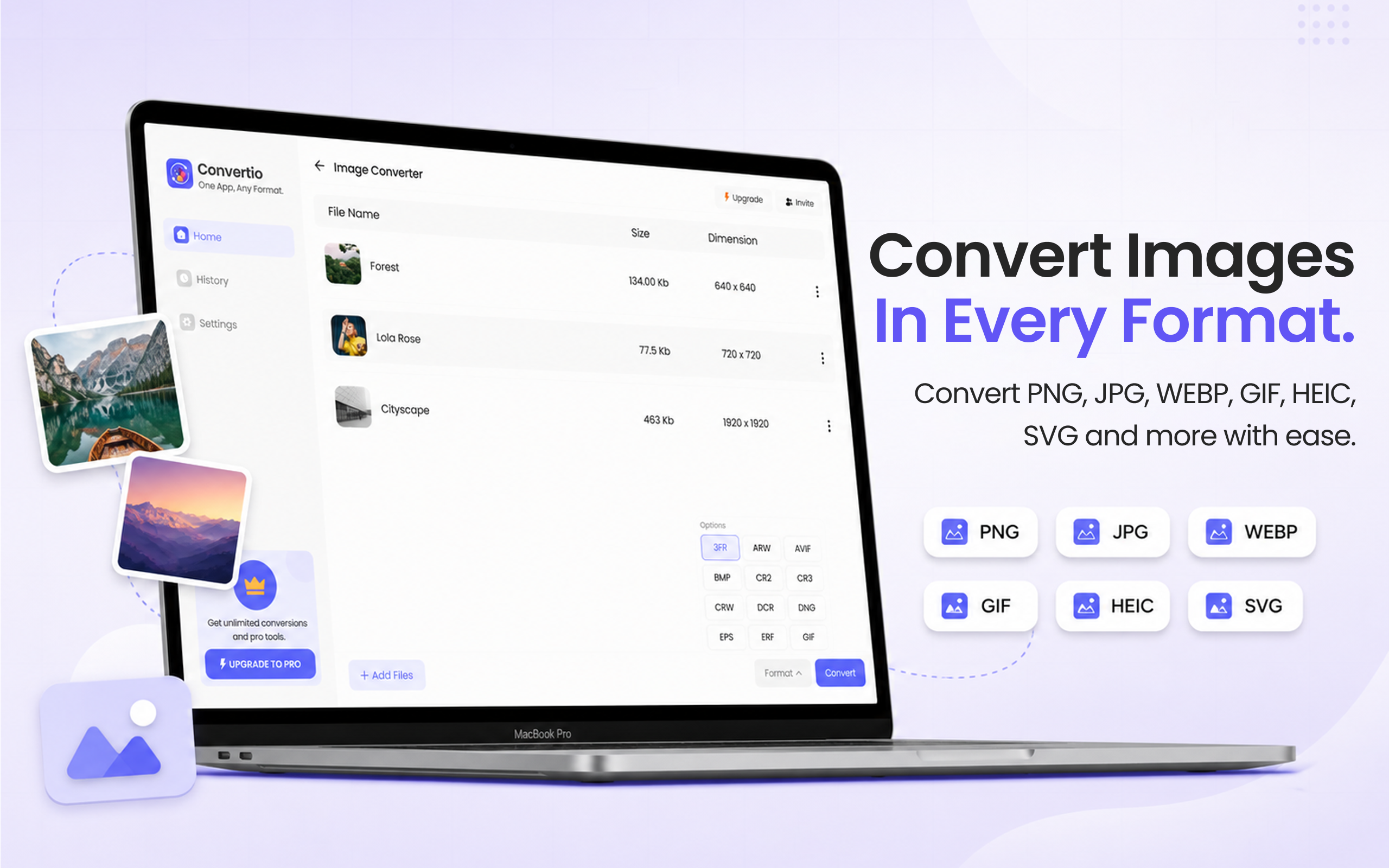
5 simple steps, done in under 30 seconds.
Get File Converter from the Mac App Store. Free to start, no account needed. Requires macOS 14 or later.
Launch the app and click Image Converter in the left sidebar.
Drag and drop the WebP files — or an entire downloads folder's worth at once.
Click the format dropdown and choose JPG from the list.
Hit Convert. Universally compatible JPGs, saved straight to your Mac.
WebP is Google's web-optimized image format — great for page speed, annoying for everything else. Older editors, corporate tools, e-commerce dashboards, and plenty of upload forms still reject it. Preview can convert WebP, but only one image at a time through the Export menu. File Converter turns a folder of WebP downloads into JPGs in a single drag — and can output PNG instead when you need transparency.
Files are deleted from servers immediately after conversion. No account required.
One app for video, audio, image, and document conversions.
Preview exports one file at a time. Drop 50 WebP files here and convert them all at once.
Most large websites serve WebP because the files are smaller and pages load faster. When you right-click and save, you get the WebP original — even if the site displayed it like a normal photo.
Yes, one image at a time via File → Export. For more than a couple of files that gets tedious fast — File Converter batch-converts a whole folder in one run.
JPG is lossy, but at normal quality settings the difference is invisible for photos and screenshots. If your image has transparency, convert to PNG instead — WebP-to-PNG works the same way.
Download File Converter and turn WebP files into JPGs everyone can open. Free to start.
Download Free for Mac