File Converter
One App, Any Format.
Résumés, contracts and forms get sent as PDF for a reason — the layout can't shift. Convert DOCX to PDF with fonts and formatting intact, no Microsoft Word required.
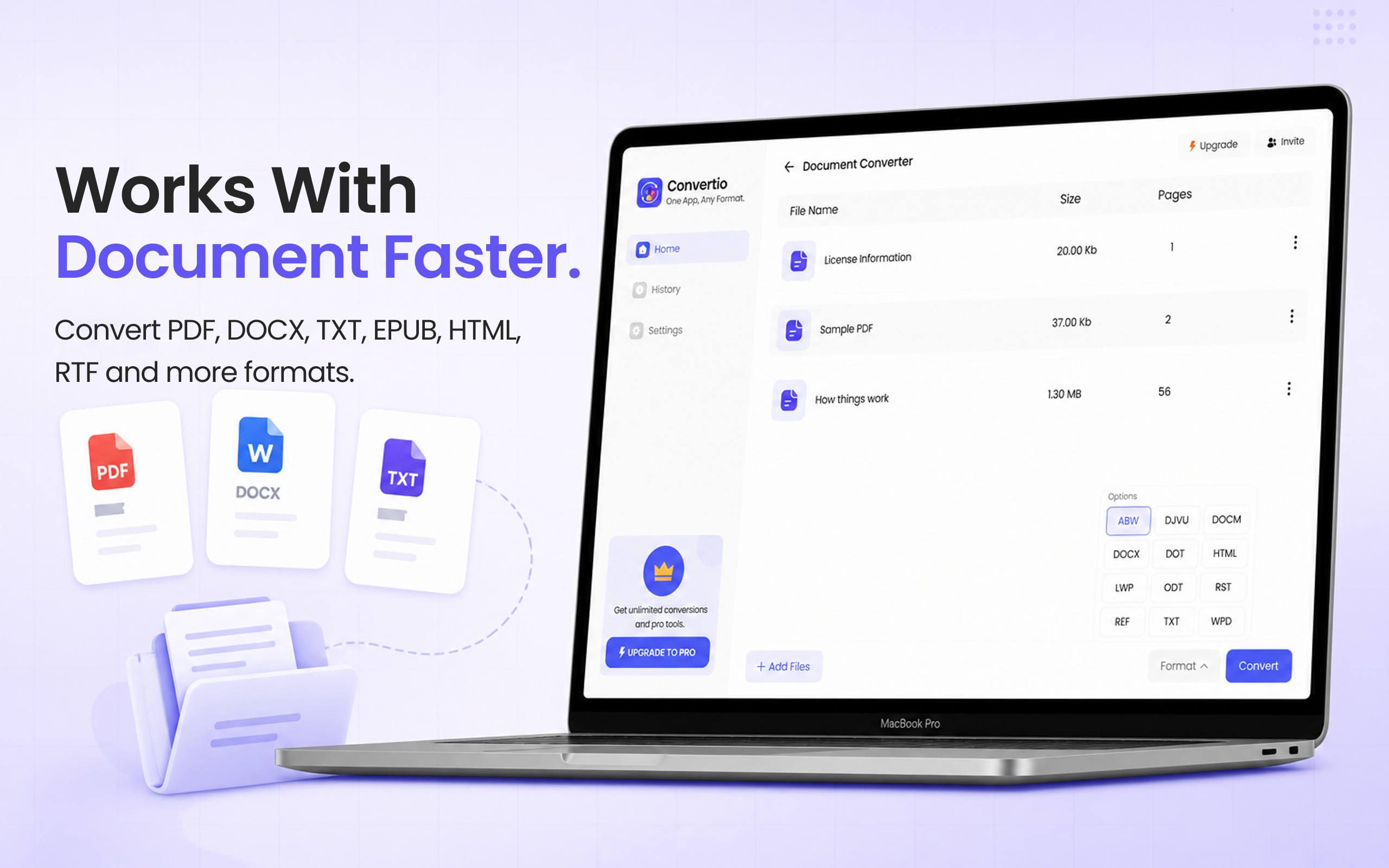
5 simple steps, done in under 30 seconds.
Get File Converter from the Mac App Store. Free to start, no account needed. Requires macOS 14 or later.
Launch the app and click Document Converter in the left sidebar.
Drag and drop DOCX or DOC files — one résumé or a folder of contracts.
Click the format dropdown and choose PDF from the list.
Hit Convert. Print-ready PDFs with your layout locked in, saved to your Mac.
A Word file opens differently on every machine — missing fonts get substituted, margins drift, page breaks move. A PDF looks identical everywhere, which is why job applications, legal documents, invoices and university submissions ask for it. If you don't have Microsoft Word installed, macOS can't reliably preview or convert DOCX layouts. File Converter produces a faithful PDF from any Word document — headings, tables, images and fonts preserved.
Files are deleted from servers immediately after conversion. No account required.
One app for video, audio, image, and document conversions.
Convert a folder of Word documents to PDF in one run.
No. File Converter converts DOCX and DOC files to PDF on its own — no Word, no Office subscription, no Pages export dance.
Yes. Headings, tables, images, margins and embedded fonts are preserved, so the PDF matches the document you wrote.
Yes — File Converter works in both directions. See the PDF to Word guide for the reverse conversion.
Download File Converter and turn your first DOCX into a polished PDF in under 30 seconds. Free to start.
Download Free for Mac